
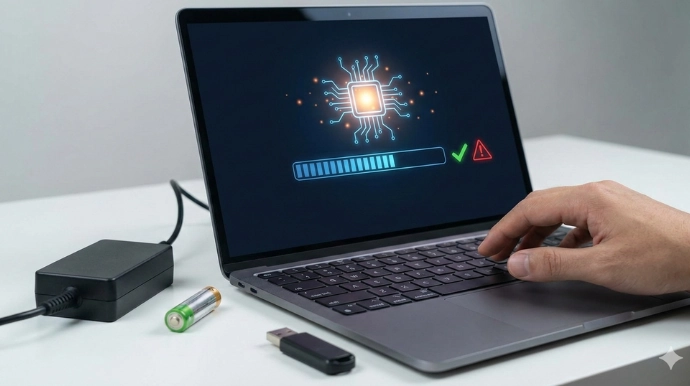
We’ve all been there staring at that notification telling us there’s a BIOS update available on our laptop, wondering whether we should click “install” or just close the window and pretend we never saw it. The question of BIOS safety isn’t something most laptop users think about until that moment arrives. Today, we’re breaking down everything you need to know about BIOS updates for laptops, when they matter, and how to handle them without breaking into a cold sweat.
What Actually Is BIOS on Your Laptop?
Before jumping into the safety talk, understanding what BIOS does helps make sense of why updating it feels so nerve-wracking. BIOS stands for Basic Input/Output System, and it’s basically the first software that runs when you turn on your laptop. Think of it as the translator between your hardware (the screen, keyboard, battery, and other physical parts) and your operating system (Windows, macOS, or Linux).
When you press that power button on your laptop, BIOS wakes up first, checks that everything is working properly from your touchpad to your Wi-Fi card and then hands control over to your operating system. Without BIOS, your fancy laptop would just be an expensive paperweight.
The modern version is called UEFI (Unified Extensible Firmware Interface), but most people still call it BIOS because old habits stick around. For our discussion here, we’ll use BIOS since that’s what everyone searches for online.
Why Would Anyone Update Laptop BIOS?
Here’s the thing BIOS updates aren’t like your regular software updates on laptops. Your laptop doesn’t need them every week or even every month. Manufacturers release BIOS updates for specific reasons:
Security patches come first. When researchers discover vulnerabilities that could let hackers access your laptop at the deepest level, manufacturers push out BIOS updates to fix these holes. These updates matter quite a bit for keeping your personal data, photos, and banking information safe.
Battery management improvements are particularly important for laptops. Sometimes manufacturers discover better ways to manage battery charging or extend battery life through BIOS updates. These can make a real difference in how long your laptop runs on a single charge.
Hardware compatibility is another big reason. Maybe you want to upgrade your laptop’s RAM or use a new type of storage drive. These updates make your older laptop components play nice with newer parts.
Touchpad and keyboard fixes address weird problems people discover after using their laptops for months. Perhaps the touchpad stops working randomly, or certain keyboard keys behave strangely. BIOS updates can solve these annoying issues.
Performance improvements sometimes come packaged in updates too. Manufacturers occasionally find ways to make your laptop run more efficiently, reduce boot times, or improve thermal management so your laptop doesn’t get as hot during use.
The Real Risks Involved with Laptop BIOS Updates
Now for the uncomfortable truth yes, there are genuine risks when updating laptop BIOS. Unlike regular software updates where the worst-case scenario is reinstalling the program, BIOS updates can potentially brick your laptop if something goes wrong.
Battery failure during update is the nightmare scenario for laptop users. If your battery dies while the BIOS is being rewritten, you could end up with a laptop that won’t start at all. This doesn’t happen often, but when it does, the results are pretty rough. That’s why most modern laptops won’t even let you start a BIOS update unless the battery has at least 50% charge and the power cable is plugged in.
The wrong BIOS version creates problems too. Installing BIOS meant for a different laptop model even if it seems similar to yours can cause serious headaches. Trusted Laptop repair shops see this mistake more than you’d think, especially with users who have older laptop models with similar names.
Corrupted download files occasionally cause issues. If the BIOS file you downloaded got damaged somehow, installing it could create all sorts of problems with your laptop’s functionality.
Local tech experts around Adelaide often mention that most laptop BIOS disasters they see come from user error rather than the update process itself. At Digimob we regularly handle laptop repair issues where proper precautions could have prevented the problem entirely.
When You Actually Need to Update Your Laptop BIOS
Here’s some practical advice: don’t update your laptop BIOS just because an update exists. The old saying “if it’s not broken, don’t fix it” really applies here.
You should consider updating when:
Your laptop has a specific problem that the BIOS update claims to fix. Read the release notes carefully. If the update addresses your exact issue like battery drain problems, Wi-Fi connectivity issues, or screen flickering then updating makes sense.
Security vulnerabilities affect your laptop model. When news breaks about serious security flaws that BIOS updates address, protecting your data becomes worth the small risk.
You’re upgrading laptop components. Installing new RAM or replacing your storage drive might require BIOS support to recognize and work properly with the new hardware.
Your manufacturer specifically recommends it. Sometimes during laptop troubleshooting, customer support will suggest a BIOS update as part of solving a larger problem.
You can probably skip updating when:
Everything works fine on your laptop. Seriously, this is the most common scenario where updates aren’t necessary. Your laptop runs well, battery life is decent, all your programs work, and you’re not having any issues.
The update only adds features you don’t need. Some BIOS updates enable support for hardware you’ll never use or features that don’t matter for your typical laptop usage.
You’re not comfortable with the process. There’s no shame in this. If the whole thing feels too risky and your laptop isn’t experiencing problems, waiting is perfectly reasonable.
Making the Laptop BIOS Update Process Safer
When you do decide to update your laptop BIOS, taking proper precautions makes the whole experience much less stressful.
Charge your battery fully. This is absolutely critical for laptops. Make sure your battery is at 100% before starting any BIOS update. Don’t skip this step.
Keep the power cord plugged in. Even with a full battery, keep your laptop connected to its power adapter during the entire update process. This provides double protection against power loss.
Read everything first. This sounds obvious, but many laptop users skip the release notes. Knowing what the update does and what risks the manufacturer warns about helps you prepare properly.
Backup your important data. While BIOS updates don’t typically affect your files, photos, or documents, having recent backups means you’re covered if something truly bizarre happens to your laptop.
Download from official sources only. Always get your BIOS updates directly from your laptop manufacturer’s website Dell, HP, Lenovo, ASUS, Acer, or whichever brand you own. Third-party download sites might have outdated or wrong versions that could damage your laptop.
Verify your exact laptop model. This step prevents the “wrong BIOS version” disaster we mentioned earlier. Your laptop model number is usually on a sticker on the bottom of the laptop or in your system information. Make absolutely sure the BIOS update matches your specific model.
Close everything else. Before starting the update on your laptop, close all your programs, save any work, and disconnect from the internet if possible. You want nothing interfering with the update process.
Don’t touch anything during the update. Once the update starts, don’t close your laptop lid, don’t press buttons, don’t click anything just let it finish. The laptop screen might go dark or show progress bars. The process usually takes between five and ten minutes, though it might seem longer when you’re watching nervously.
What Laptop Repair Communities Say
Online forums and discussion boards give us real insights into how people experience laptop BIOS updates. On Reddit’s laptop communities, experienced users consistently advise newcomers to be cautious but not fearful.
One common thread that appears frequently: successful laptop BIOS updates are boring and uneventful. People who follow the proper steps and take basic precautions rarely encounter problems. The horror stories usually involve someone who tried updating with a dying battery or clicked the wrong download link.
Tech support communities also emphasize checking manufacturer forums before updating your laptop. Often you’ll find posts from other users with the same laptop model who’ve already installed the update and can report whether they experienced any issues.
Australian tech forums, including discussions around Adelaide laptop repair services and Macbook repair Adelaide, show that local technicians generally suggest seeking professional help if you’re unsure. Whether it’s a Windows laptop or a Mac device, the cost of expert assistance is far lower than the potential expense of fixing a bricked motherboard after a failed BIOS update.
Recovery Options If Things Go Wrong with Your Laptop
Despite taking precautions, sometimes laptop BIOS updates fail. Knowing your recovery options beforehand reduces panic if something goes wrong.
Emergency recovery modes exist on many modern laptops. Some laptop manufacturers include special recovery procedures involving USB drives and specific key combinations during startup. Check your laptop manual or manufacturer’s website for these procedures before attempting any update.
Manufacturer warranty support becomes important here. If your laptop is still under warranty and the BIOS update fails, contact the manufacturer immediately. Many will repair or replace the laptop if a BIOS update gone wrong caused the problem.
Professional laptop repair services become necessary when simpler recovery methods fail. Laptop repair specialists have tools and knowledge for recovering from failed BIOS updates. Services throughout Adelaide, businesses regularly handle these situations and can often restore laptops that seem completely dead.
Mail-in repair programs are offered by many laptop manufacturers. If your laptop won’t start after a failed BIOS update, they might have you send it in for professional recovery and repair.
Special Considerations for Different Laptop Users
Different laptop users face different BIOS update considerations based on their needs and technical comfort levels.
Home users with basic computing needs probably update laptop BIOS less frequently than others. If your laptop handles email, web browsing, streaming videos, and basic tasks without issues, you can safely ignore most BIOS updates unless security concerns arise.
Students using laptops for schoolwork should be extra careful. A bricked laptop during exam season or when assignments are due creates unnecessary stress. If updates are needed, do them during breaks when laptop downtime won’t affect studies.
Business travelers who depend on their laptops for work should time BIOS updates carefully. Don’t update the night before a big presentation or important trip. Give yourself several days to verify everything works properly after updating.
Gaming laptop owners often update BIOS more regularly, especially when trying to improve performance or add new hardware. These users typically feel more comfortable with the process and understand the risks better.
Older laptops require extra caution. Laptops more than five years old might have different update procedures or increased risk factors. Research thoroughly before updating older laptop hardware, as recovery options might be limited for discontinued models.
Looking Ahead: The Future of Laptop BIOS Updates
The whole laptop BIOS update process continues evolving. Manufacturers recognize that the current system intimidates many users, and improvements are coming.
Cloud-based recovery options are emerging on newer laptops. Some modern systems can download and restore BIOS directly from the internet if something goes wrong, removing much of the risk from updates.
Automatic verification systems are becoming more common on laptops. These check that downloads aren’t corrupted and confirm you’re installing the correct version for your specific laptop model before proceeding.
Improved user interfaces make the update process clearer on laptops. Instead of cryptic text screens, newer BIOS update tools use simple graphics and plain language instructions that make sense to regular users.
Battery protection features built into modern laptops help prevent update failures. Many laptops now refuse to start BIOS updates unless specific battery and power conditions are met.
What remains unclear is whether manufacturers will eventually make laptop BIOS updates as routine and safe as regular software updates. The fundamental nature of BIOS being the deepest level of system software creates inherent risks that no amount of polish can completely eliminate.
Final Thoughts on Laptop BIOS Updates
The question “is it safe to update BIOS on your laptop?” doesn’t have a simple yes or no answer. Updates carry some risk, but that risk is manageable with proper precautions. For most laptop users, BIOS updates happen infrequently enough that taking time to do them carefully makes sense.
The key takeaway is this: don’t fear laptop BIOS updates, but respect them. They’re not something to do casually while watching Netflix on your couch, but they’re also not so dangerous that you should avoid them forever. Treat them seriously, follow proper procedures, and you’ll likely never experience any problems with your laptop.
For Adelaide residents and anyone else who feels uncomfortable handling laptop BIOS updates alone, professional laptop repair services exist precisely for this reason. There’s no shame in asking for help with something that could potentially cause expensive problems if done incorrectly. A small service fee beats replacing an entire laptop motherboard.
The technology world keeps moving forward, and sometimes keeping our laptops current means stepping slightly outside our comfort zones. With the right preparation and knowledge, updating laptop BIOS can be just another maintenance task rather than a source of anxiety.
Frequently Asked Questions
Q: How often should laptop BIOS be updated?
A: Only when experiencing specific problems, adding hardware, or addressing security issues. Many laptops run fine for years without updates.
Q: Can BIOS updates improve battery life?
A: Sometimes they help with battery management, but won’t fix an old battery that needs replacement.
Q: What if the battery dies during update?
A: The laptop may not start and require professional repair. Always keep power plugged in and the battery fully charged.
Q: Should you update BIOS on a work laptop?
A: Only with IT department permission. Check company policies first to avoid violating support agreements.For professional laptop or tech repair and maintenance services in Adelaide, including safe BIOS updates, hardware upgrades, and system optimization, visit Digimob for expert assistance with all your laptop needs.