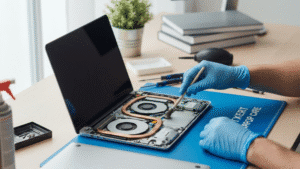

We have all been there. You sit down to use your laptop, and it greets you with that dreaded spinning circle and the message “Working on updates… Do not turn off your computer.” Ten minutes pass. Then twenty. Then an hour. The screen stays the same. Your laptop is frozen mid-update, and you have no idea whether to wait it out, force a restart, or call for help.
This situation is one of the most common laptop problems reported by everyday users across Australia. Whether you are running Windows 10, Windows 11, or even an older version of macOS, a laptop stuck on updates can feel alarming. But in most cases, it is fixable and you do not always need a technician to sort it out.
This guide walks you through everything you need to know: why it happens, what to try first, when to escalate, and how to prevent it from occurring again. If the issue persists, seeking professional laptop repair can ensure your device is safely restored without risking data loss.
Why Do Laptops Get Stuck on Updates
Before jumping into solutions, it helps to understand what is actually going on. When your operating system runs an update, it downloads files, installs patches, modifies system configurations, and sometimes replaces core components. This is a complex process with a lot of moving parts.
A laptop can stall during any one of these stages. The most common reasons include a corrupted update file that did not download properly, a slow or interrupted internet connection, low storage space on the hard drive, conflicting third-party software or antivirus programs, outdated or incompatible device drivers, and underlying hardware issues such as a failing hard drive or overheating components.
According to Microsoft’s own support data, failed Windows updates are among the top five reasons users contact technical support globally. A 2022 study by Lansweeper found that millions of Windows Live devices were running problematic update states at any given time, suggesting this is far from a rare glitch.
The key is knowing how to tell whether your laptop is genuinely stuck or just taking longer than expected.
How to Tell If Your Laptop Is Actually Frozen
The update screen can be misleading. Sometimes the progress bar simply moves very slowly, especially with large feature updates. A good rule of thumb is to wait at least two hours before assuming something is wrong. If the percentage counter has not changed at all and there is no hard drive activity light blinking, that is a stronger sign that the process has stalled.
You can also listen. A completely silent laptop with no fan activity and no disk light movement is more likely frozen than one that sounds like it is working hard in the background.
If nothing has moved in over two hours and the disk activity light is completely still, it is time to start troubleshooting.
Step-by-Step Troubleshooting Guide
The first thing to try is simply waiting and then doing a soft restart. Hold the power button until the laptop shuts down, leave it off for two minutes, then turn it back on. In many cases, Windows or macOS will detect the incomplete update and either resume it automatically or roll it back to the previous working state. This alone resolves the problem for a large number of users.
Once your laptop has restarted, check for error codes. Windows will often display an update error code during boot, such as 0x800f0922 or 0x80070002. These codes are specific and searchable; typing them directly into Google will usually surface the exact cause and a Microsoft-recommended fix. Do not ignore these codes. They are your most direct clue about what went wrong.
Next, run the Windows Update Troubleshooter. On Windows 10 and 11, go to Settings, then System, then Troubleshoot, then Other Troubleshooters. Select Windows Update and click Run. This built-in tool scans for common problems, clears corrupted caches, and resets update components automatically. It handles a surprisingly wide range of issues without any technical knowledge required.
Clearing the Windows Update Cache is another effective step. Updates are stored temporarily in a folder called SoftwareDistribution. If a downloaded file is corrupted, it will keep failing even when you retry. To clear this cache, open the Command Prompt as an administrator, type net stop wuauserv, press Enter, then type net stop bits and press Enter again. Now navigate to C:\Windows\SoftwareDistribution and delete the contents of the Download folder. Restart the update service by typing net start wuauserv and net start bits. Then try running Windows Update again.
Check your available disk space. Windows updates frequently require between 10 and 20 gigabytes of free space to install properly. If your C: drive is nearly full, the update will fail. Go to This PC and check how much space is remaining. If it is under 15 GB, use the built-in Disk Cleanup tool or uninstall applications you no longer use before trying again.
Temporarily disable your antivirus or security software. Some third-party antivirus programs interfere with the update process by blocking files they incorrectly flag as threats. Disabling your antivirus for the duration of the update and re-enabling it immediately after can sometimes be the difference between a failed and a successful install.
Update your device drivers, especially your graphics and chipset drivers. Outdated drivers are a surprisingly common cause of Windows Update failures because new OS patches sometimes require updated driver compatibility to install correctly. Visit your laptop manufacturer’s website and download the latest drivers for your specific model.
For Mac users experiencing a stall during a macOS update, the approach is slightly different. Restart while holding Command and R to boot into Recovery Mode. From there, use Disk Utility to run First Aid on your startup disk, which checks for file system errors. Then exit and attempt the update again. If the update continues to fail, internet recovery allows you to reinstall macOS from scratch without losing your data.
Hardware Causes That Are Easy to Overlook
Sometimes the problem is not software at all. A laptop with a failing hard drive or SSD will frequently stall during updates because the drive cannot write data reliably. If you hear unusual clicking noises from your laptop during an update, or if your device has been slow and crashing more often lately, the drive may be the underlying issue.
Overheating is another hardware culprit. Laptops that get very hot during the update process may throttle their processor speed dramatically, causing the update to slow to a crawl or stall entirely. Make sure your laptop is on a hard, flat surface with good ventilation. A laptop cooling pad can help if overheating is a recurring problem.
Insufficient RAM can also contribute to update failures, particularly on older devices with 4 GB or less. Updates require system memory to decompress and process files, and low-memory environments can cause the process to time out.
When to Stop DIY Troubleshooting and See a Professional
If you have worked through the steps above and your laptop continues to freeze during updates, it is time to get an expert involved. Specifically, visit a professional laptop repair shop if your laptop will not boot at all after a failed update, if you are seeing blue screen errors (BSOD) every time the device starts, if Disk Utility or CHKDSK reports errors on your drive, if the device is consistently overheating despite thermal cleaning, or if your laptop is several years old and performance has been declining steadily.
A qualified technician at a trusted laptop repair shop can run deeper diagnostics, check the health of your SSD or hard drive with professional tools, and determine whether the issue is hardware-related rather than a software glitch.
How to Prevent Update Failures in the Future
Prevention is always better than a repair bill. Keep at least 20 GB of free space on your system drive at all times. Set Windows Update to download updates in the background during idle hours rather than forcing manual installs. Always connect to a reliable wired or strong Wi-Fi connection before running major updates. Back up your data regularly using an external drive or cloud
Frequently Asked Questions
Q: How long should a laptop update take before I worry?
A: Most updates are complete within 30 to 90 minutes, depending on your internet speed and the size of the update. If two hours pass with no visible progress, the update has likely stalled.
Q: Is it safe to force-restart a laptop during an update?
A: In most cases, yes. Modern operating systems are designed to handle unexpected shutdowns during updates and will attempt to recover or roll back automatically on the next boot.
Q: What does error code 0x800f0922 mean?
A: This Windows Update error typically indicates that your device cannot connect to the update servers or does not have enough space on the system partition. Check your internet connection and free disk space first.
Q: Can a virus cause Windows updates to fail?
A: Yes. Malware can corrupt system files needed for the update process. Running a full scan with Windows Defender or a trusted antivirus tool before updating is a good practice.
Q: Will reinstalling Windows fix a broken update?
A: If all other fixes have failed, a clean reinstall of Windows will generally resolve update-related issues, though it should be treated as a last resort after backing up all personal data.
Need Help in Adelaide? Digimob Can Sort It Out
If your laptop is stuck on updates and nothing seems to be working, the team at Digimob is here to help. Serving customers across Adelaide, including the CBD, Glenelg, Norwood, Salisbury, and surrounding suburbs, Digimob offers professional laptop diagnostics and repair services for both Windows and Mac devices. With a track record of positive Google reviews, our clients trust us to handle everything from software faults and failing drives to hardware issues causing update problems. The technicians at Digimob have the tools and experience to get your device running smoothly again. If you are in the Adelaide area and need reliable support, feel free to pop in or get in touch; there’s no complicated process, just straightforward help when you need it.