You tap “Software Update”, wait patiently, and then nothing happens. Or worse, your iPhone or iPad gets stuck mid-download, shows a spinning wheel, or flashes an error message you have never seen before. Sound familiar? You are definitely not alone.
iOS and iPadOS updates are one of the most essential things you can do for your device. They patch security vulnerabilities, fix bugs, improve battery life, and unlock new features. When an update refuses to install, it is not just frustrating; it can leave your device exposed to known security risks.
Apple regularly releases iOS updates. Millions of users attempt to update their devices during each release cycle, and a significant portion encounter errors. The good news? Most update failures are fixable at home with a few simple steps.
~85%
Some update failures are software or network issues
#1
Reason: not enough free storage space
10 min
The average time to fix most update errors at home
Why Does an iPhone or iPad Refuse to Update?
Before jumping into fixes, it helps to understand what is actually going wrong. An iOS or iPadOS update involves multiple steps: your device checks Apple’s servers, downloads a large file (sometimes 3GB or more), verifies the package, and then installs it. Any one of these stages can break down, and the reason is not always obvious from the error message on screen. In some cases, persistent update failures may even indicate deeper software or hardware issues that require professional iPad repairs or device diagnostics.
Update errors can come from three main areas: software glitches on your device, network or server-side problems, and hardware limitations. Here is a breakdown of the most common culprits:
Insufficient Storage
iOS updates need temporary space to unpack. Even if you have 1GB of free space, you may still see a storage warning.
Unstable Wi-Fi
A dropped connection mid-download corrupts the update file. Apple’s servers may also be busy during peak rollout periods.
Low Battery
iOS requires at least 50% charge (or being plugged in) before it allows an update to begin.
Old or Unsupported Hardware
Older iPhone and iPad models are eventually dropped from iOS support. iOS 18, for example, does not support the iPhone X or earlier.
Corrupted Update File
A partial or corrupted download can cause the install to stall or fail at the verification step.
Software Conflict
Certain apps, MDM profiles (on managed devices), or jailbreak remnants can block the update process entirely.
Step-by-Step Fixes: What to Try First
Work through these troubleshooting steps in order. Most users find that their issue is resolved within the first three or four steps. Each step takes only a minute or two to attempt, and none of them risks your data.
1. Check Your Available Storage Space
Go to Settings, then General, then iPhone (or iPad) Storage. You will see a visual breakdown of what is taking up space. iOS updates typically need between 2GB and 5GB of free space to download and install. If your storage is nearly full, delete unused apps, offload old photos to iCloud, or remove podcasts and downloaded videos.
Tip: After freeing up space, restart your device before trying the update again. This clears temporary cache files and gives the system a fresh start.
2. Check Your Internet Connection
Open Safari and try loading a website. If pages load slowly or not at all, your Wi-Fi is the problem, not your device. Restart your router by unplugging it for 30 seconds. Move closer to the router. If possible, try a completely different Wi-Fi network. Avoid updating over mobile data, as iOS updates are typically too large and Apple restricts cellular downloads over a certain size.
3. Charge Your Device to at Least 50%
Apple intentionally blocks updates when the battery is too low. The system does this to prevent the device from dying during the installation process, which can cause serious software corruption. Plug your device into a charger and wait until it reaches at least 50% before attempting the update again.
4. Delete the Downloaded Update and Redownload
If you see the update file sitting in your storage but the install keeps failing, the download may be corrupted. Go to Settings, then General, then iPhone Storage, scroll down to find the iOS update file, and tap “Delete Update.” Then go back to Software Update and download it fresh. This fixes a surprisingly large number of stuck update errors.
5. Restart Your iPhone or iPad
A full restart clears the device’s RAM and stops any background processes that might be interfering with the update. On Face ID devices, hold the side button and either volume button until the power slider appears. On older Touch ID devices, just hold the side or top button. Slide to power off, wait 30 seconds, then turn it back on.
6. Update Using a Mac or PC (via Finder or iTunes)
When over-the-air updates keep failing, updating through a computer is often the most reliable fix. Connect your iPhone or iPad to your Mac using a USB cable. On macOS Catalina or later, open Finder. On Windows or older Macs, open iTunes. Select your device, then click “Check for Update.” This method bypasses any network issues on your device and downloads the update directly to your computer before installing it.
If Finder or iTunes says your device needs to be in Recovery Mode, hold off and do not panic. Try the steps above first. Recovery Mode updates will erase your device, so always back up to iCloud or your computer before going down that path.
7. Check If Your Device is Compatible With the Update
Apple drops older devices from iOS support after several years. If your iPhone or iPad model is not listed on Apple’s compatibility page for the latest iOS version, the update simply will not appear. This is not a bug it is a hardware limitation. You can check your exact model by going to Settings, General, then About.
- Free up storage space – at least 2 to 5GB of free space is required
- Test your Wi-Fi connection – restart your router and move closer if needed
- Charge to 50% or plug in – iOS blocks updates on low battery
- Delete and redownload the update file – removes any corrupted data
- Restart the device – clears RAM and background processes
- Update via Mac or PC – bypasses over-the-air issues
- Check device compatibility – confirm your model supports the update
8. Reset All settings (Last Resort Before Professional Help)
If nothing else works, resetting all settings can clear any configuration conflicts that are blocking the update. Go to Settings, General, Transfer or Reset iPhone, then Reset, and choose Reset All Settings. This does not erase your data or apps, but it will reset your Wi-Fi passwords, wallpaper, and personalised settings back to defaults. After the reset, reconnect to Wi-Fi and try the update again.
Important: Do not attempt a factory restore (Erase All Content and Settings) unless you have a complete, verified backup. Use iCloud Backup or Finder/iTunes to back up before taking that step.
What Those Error Messages Actually Mean
Apple shows specific error codes when an update fails through iTunes or Finder. These codes are helpful because they point to a specific part of the update process that broke down. Here are the most commonly seen ones and what they indicate:
Error 4000 or 4005 usually points to a USB connection problem. Try a different cable or port. Error 9 often means security software on your computer is blocking the update process, so temporarily disable your firewall or antivirus and try again. Error 14 typically signals a hardware issue, often related to the device’s flash storage. If you are seeing Error 14 repeatedly, that is a strong signal to visit a repair technician. Error 3194 means iTunes cannot connect to Apple’s update servers, usually because of a modified hosts file on your computer or a DNS issue.
If you are updating over the air (directly on the device) and see a message saying “Unable to Check for Update” or “Unable to Verify Update,” it almost always comes down to either a network problem or a corrupted download file.
When to See a Professional Repair Technician
Most update issues can be solved at home. But some situations go beyond a simple troubleshooting fix and point to a deeper hardware or software problem that needs professional attention.
You should consider seeing a professional repairer if your device repeatedly gets stuck in a boot loop after attempting an update, if you are consistently seeing Error 14 or similar hardware-related error codes, if the screen is unresponsive or the device does not turn on at all, if your storage appears full but you have already deleted everything possible, or if the device is running hot, freezing frequently, or behaving strangely even before the update attempt.
Physical damage matters here, too. If your device has been dropped, exposed to water, or has a cracked screen, the internal components may be compromised in a way that causes update failures. A seemingly unrelated fall could damage the logic board or storage chip, which then surfaces as an update error.
“In Adelaide? The team at Digimob provides professional iPhone and iPad diagnostics and repairs across Adelaide, including the CBD, Norwood, Glenelg, Salisbury, and surrounding suburbs.”
Frequently Asked Questions
Q: Why does my iPhone say “Update Requested”?
A: Apple’s servers are busy, or your Wi-Fi is weak. Wait a few hours and try again on a stronger connection.
Q: Can I update without Wi-Fi?
A: Small updates allow mobile data, but major iOS updates require Wi-Fi. You can also update through iTunes or Finder on a computer.
Q: Will updating erase my data?
A: No. A normal update keeps all your data safe. Only a factory restore wipes everything, so back up first, just in case.
Q: My iPad is too old to update. What now?
A: If your model is no longer supported by Apple, no update will appear. You can keep using it as is, but upgrading your device is the long-term solution.
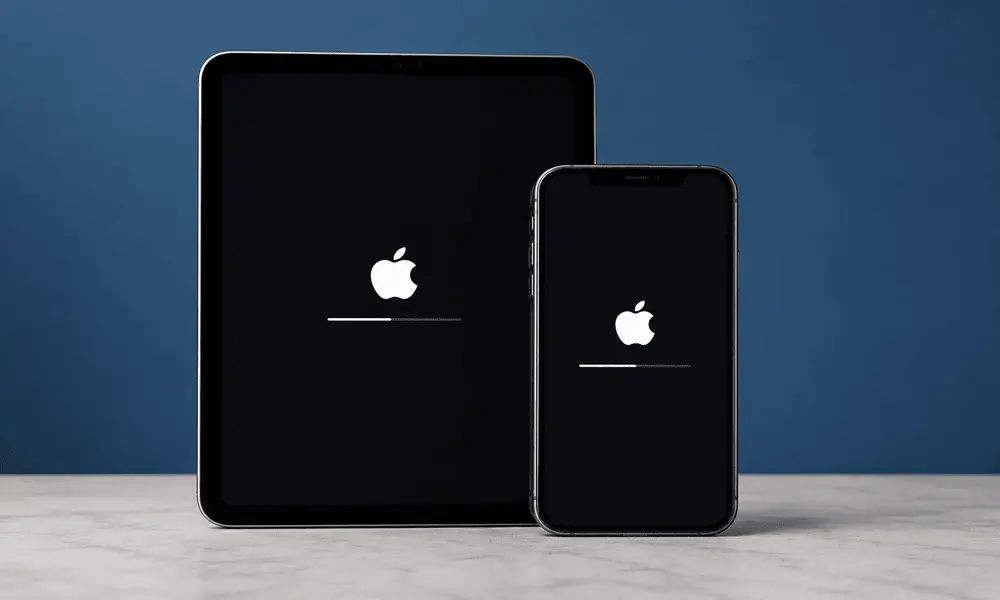
Q: iPhone stuck on Apple logo after update?
A: Try a force restart first. If it stays stuck, use Recovery Mode through Finder or iTunes on your computer.
Final Words
An iPhone or iPad that refuses to update can feel like a much bigger problem than it usually turns out to be. In most cases, the cause is something straightforward: not enough free storage space, a weak or dropping Wi-Fi signal, or an update file that did not download cleanly the first time. Working through the troubleshooting steps covered in this guide will resolve the issue for the vast majority of users without needing any technical expertise.
Keeping your iOS or iPadOS version current genuinely matters. Apple’s software updates patch real security vulnerabilities, fix performance bugs, and often bring noticeable improvements to battery life and everyday responsiveness. Staying on an outdated version is a risk that is worth addressing sooner rather than later.
If you have worked through every step in this guide and your device is still refusing to update, that is a reliable sign that something more complex is at play. It could be a deeper software conflict that needs proper diagnostics, or a hardware issue that requires hands-on inspection. In that situation, visiting a qualified local repair technician is the right move rather than continuing to troubleshoot blindly.
For residents across Adelaide, including the CBD, Norwood, Glenelg, and Salisbury, the team at Digimob offers professional iPhone, iPad, and other tech repair services to get your device back up and running properly.