You Have a SIM Card — So Why Is There No Signal?
You pick up your phone, ready to make a call or send a message, and there it is, that dreaded “No Network” error. Your SIM card is in place, your bill is paid, and yet your phone refuses to connect. If this sounds familiar, you are not alone. This is one of the most common mobile network issues people search for every day.
The frustrating part? There is no single reason why this happens. A no service error could be a simple software glitch, a SIM card error, a deeper hardware fault, or even a problem with your carrier network settings. Understanding the root cause is the first step toward fixing it.
This guide walks you through the most common causes from baseband processor issues to IMEI problems and gives you practical steps to restore your mobile connection. Whether you are a casual user or a tech-curious individual, this article is written in plain language so anyone can follow along.
Understanding the Causes of “No Network” on Your Phone
Before you panic and rush to a repair shop, it helps to understand what might actually be going wrong. The causes generally fall into three main categories: software issues, hardware faults, and network or carrier problems.
1. Software and Settings Issues
Outdated Carrier Settings
One overlooked cause of signal loss is outdated carrier settings. Your phone needs the latest configuration files from your mobile carrier to connect properly. When these fall out of date, your device may fail to register with the cellular network. This is especially common after a major iOS or Android update.
In some cases, users attempt multiple resets without understanding the root issue, which can complicate troubleshooting later. If important files are at risk due to repeated system crashes or forced resets, data recovery solutions can help safeguard contacts, messages, and essential documents before deeper repairs are performed. Updating carrier settings through your phone’s system menu is usually a quick fix, but if the issue persists, it may signal a deeper software instability that needs expert attention.
Software Bugs and Corrupt System Files
Sometimes a faulty update or a corrupt system file can disrupt your phone’s ability to manage radio frequency connections. This can cause your phone to lose network connectivity even though nothing physical has changed. A factory reset or system restore can often solve this.
Airplane Mode Glitch
Believe it or not, a stuck Airplane Mode bug where the setting is technically off but still behaves as if it is on can block all cellular signal reception. This is a software-level interference that a simple restart sometimes resolves.
2. Hardware and Physical Causes
Damaged or Dirty SIM Card
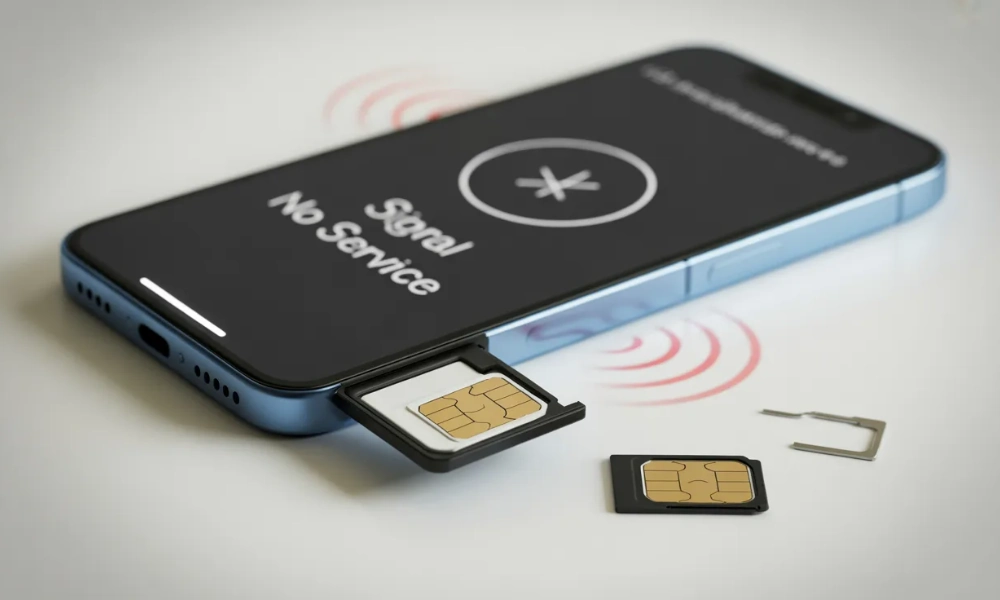
Your SIM card is a small but critical piece of hardware. If it gets scratched, bent, or dirty, your phone may fail to read it at all. A SIM card tray that does not sit flush can also cause intermittent signal problems. Try removing the SIM, cleaning it gently with a dry cloth, and reinserting it.
Baseband Processor Fault
This is where things get more technical. The baseband processor (also called the baseband chip or radio processor) is the part of your phone responsible for managing all mobile communication calls, SMS, and mobile data. A baseband fault can make your phone completely unable to detect any network, even with a perfectly good SIM card inserted. This is a hardware-level failure that usually requires professional diagnosis.
Motherboard or Antenna Damage
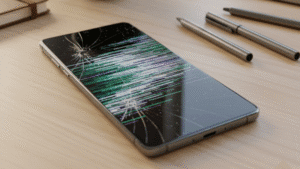
Your phone’s internal antenna is connected to the motherboard via small cables and contact points. Physical damage from drops, water exposure, or excessive heat can damage these connections and result in total signal failure. If your phone was recently dropped or exposed to moisture, this is a strong candidate for the problem.
IMEI Issues
Every phone has a unique IMEI number, think of it as your phone’s identity on the mobile network. If the IMEI is corrupted, reported stolen, or flagged by your carrier, your phone will not be allowed to connect to any network. You can check your IMEI by dialling *#06#. If it shows as blank or all zeros, there may be a serious IMEI corruption issue at play.
3. Carrier and Network-Related Problems
Network Outage in Your Area
Sometimes the problem has nothing to do with your device. A carrier network outage or tower maintenance can leave you without service in certain areas. Check your carrier’s official website or social media for any reported outages before assuming the fault lies with your phone.
SIM Card Not Activated or Expired
A deactivated SIM card or one that has passed its expiry window will show as having no network even if it physically works fine. Contact your mobile carrier to confirm your SIM’s status.
Incompatible Network Bands
If you are using a phone purchased overseas or from an unofficial source, it may not support the frequency bands used by local carriers in Australia. This network band incompatibility can cause persistent no-network issues even when everything else seems fine.
Step-by-Step Troubleshooting: What to Try First
Now that you understand the possible causes, here are practical steps to try before heading to a repair technician.
- Restart your phone — It clears temporary software glitches and resets network radio connections.
- Toggle Airplane Mode — Turn it on for 30 seconds, then off. This forces the phone to search for available networks again.
- Remove and reinsert the SIM card — Clean the contacts gently and make sure the SIM tray is properly seated.
- Update carrier settings — On iPhone, go to Settings > General > About. On Android, check for network settings updates in the carrier section.
- Update your phone’s software — Install any pending iOS or Android system updates, which may contain network stability patches.
- Select network manually — Go to Settings > Mobile Network > Network Operators and try selecting your carrier manually instead of automatically.
- Try your SIM in another phone — If it works on another device, the problem is with your handset. If it doesn’t, the issue is with the SIM card or your carrier account.
- Check your IMEI — Dial *#06# to verify your IMEI status. If it appears blank or incorrect, professional help is needed.
- Factory reset (last resort) — This erases all data, so back up first. A reset can fix deep software-related signal problems.
When to Seek Professional Mobile Repair
If you have worked through the steps above and your phone still shows no network, it is likely a hardware problem that requires specialised tools to diagnose. You should seek professional help if:
- The IMEI number is blank, missing, or returning as null
- Your phone was recently dropped, exposed to water, or suffered physical damage
- Multiple SIM cards all fail in the same phone
- The baseband firmware fails to load (visible in diagnostic mode)
- There is visible corrosion or damage around the SIM socket or motherboard
- The phone heats up excessively while searching for signal
Hardware-level problems like baseband chip replacement, antenna repair, or IMEI restoration are complex tasks that require micro-soldering equipment and trained technicians. Attempting these yourself without experience can cause permanent damage to your device.
Frequently Asked Questions
Q: Why does my phone say “No Service” even though my SIM is active?
A: This could be caused by a software glitch, outdated carrier settings, a damaged SIM card, a baseband fault, or a network outage in your area. Start with a restart and network toggle, then escalate to hardware checks if the problem persists.
Q: Can a factory reset fix a “No Network” problem?
A: Yes, in some cases. If the issue stems from corrupted system files or a software conflict, a factory reset can restore normal network functionality. However, it will not fix hardware faults.
Q: What is a baseband processor and can it be repaired?
A: The baseband processor handles all wireless communication including calls, SMS, and mobile data. If it fails, the phone loses all cellular connectivity. In some cases it can be reflashed with new firmware; in others it requires chip-level repair or board replacement by a qualified technician.
Q: How do I know if my IMEI is blacklisted?
A: Dial *#06# to get your IMEI number, then check it on your carrier’s website or a third-party IMEI checker. A blacklisted or invalid IMEI will prevent your device from connecting to any network.
Q: Is a “No Network” issue covered by phone warranty?
A: It depends on the cause. Manufacturer defects are often covered, but physical damage, water damage, or IMEI-related issues typically are not. Check with your device manufacturer or carrier before paying for out-of-pocket repairs.
Final Thoughts: Don’t Let a Network Issue Go Undiagnosed
A “No Network” error on a phone with an active SIM can be deeply frustrating, but it is almost always solvable whether through a quick settings change or a professional hardware repair. The key is to work through the problem methodically: start with software fixes, verify your SIM and IMEI, and then consider physical damage or component failure as possibilities.
Most people find the issue falls into one of the categories covered in this guide. A bit of patience and the right troubleshooting process can save you both time and money.If you have worked through every step and your phone still cannot find a network, it may be time to get a professional opinion. Digimob provides expert mobile phone repair services across Melbourne and Adelaide, with technicians experienced in diagnosing complex issues like baseband faults, IMEI problems, and motherboard-level repairs. If you are nearby and struggling with a persistent no service error, reaching out to a local expert who can properly assess your device is well worth it.